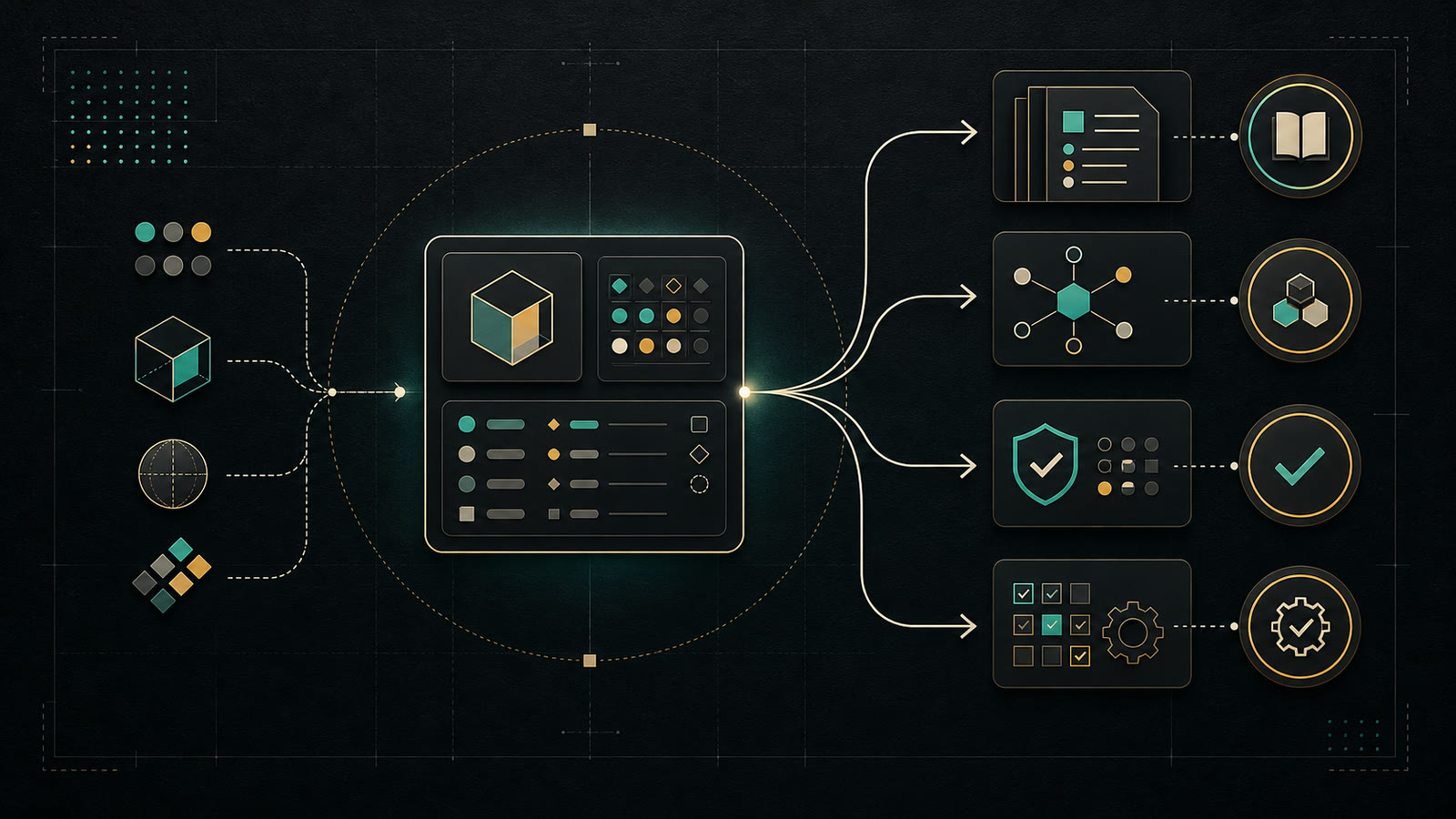
컴포넌트 명세
Props 스키마, 상태 머신, 슬롯 합성, 접근성을 명시하고 ComponentMeta를 단일 소스로 두어 AI가 정확한 코드를 생성하게 하는 컴포넌트 명세 설계법.
핵심 요약
- 컴포넌트 명세는 Props 스키마, 상태 모델, 합성 패턴, 접근성, 예시로 구성된 AI용 청사진입니다.
- Literal Union·Discriminated Union과 @ai-hint·@default 주석으로 AI의 선택 기준과 제약을 명시합니다.
- 상태는 상태 머신(idle→loading→success/error 등)으로, 합성은 Compound Component와 슬롯 스키마(required/allowedTypes/maxCount)로 정의합니다.
- ComponentMeta(TS/JSON)를 단일 소스로 두고 여기서 MDX 문서·PropsTable·MCP 리소스·lint 규칙을 파생시키면 문서-코드 드리프트를 막습니다.
- Zod/JSON Schema로 meta를 빌드 타임 검증해 필수 필드·enum·제약 위반을 자동 검출합니다.
컴포넌트 명세는 AI가 따라 읽는 컴포넌트 사용 청사진입니다. Props 스키마, 상태 모델, 합성 패턴을 분명하게 정의해 두어야 AI가 올바른 코드를 생성합니다.
컴포넌트 명세의 구조
Props 스키마 설계
기본 원칙
TypeScript Interface 패턴
// components/button/types.ts

/**
 * 버튼 컴포넌트의 시각적 변형
 * @ai-hint variant는 용도에 따라 선택:
 * - default: 일반 액션
 * - destructive: 삭제/위험 액션
 * - outline: 보조 액션
 * - ghost: 최소 강조
 * - link: 인라인 링크 스타일
 */
type ButtonVariant = 'default' | 'destructive' | 'outline' | 'ghost' | 'link'

/**
 * 버튼 크기
 * @ai-hint 컨텍스트에 따라 선택:
 * - sm: 밀집된 UI, 테이블 내부
 * - default: 일반적인 폼, 대화상자
 * - lg: 히어로 섹션, 주요 CTA
 * - icon: 아이콘 전용 (정사각형)
 */
type ButtonSize = 'default' | 'sm' | 'lg' | 'icon'

interface ButtonProps {
  /** 버튼 텍스트 또는 내용 */
  children: React.ReactNode

  /** 시각적 스타일 변형 @default "default" */
  variant?: ButtonVariant

  /** 버튼 크기 @default "default" */
  size?: ButtonSize

  /** 비활성화 상태 */
  disabled?: boolean

  /** 로딩 상태 - true일 때 스피너 표시 및 클릭 비활성화 */
  loading?: boolean

  /** 전체 너비 확장 */
  fullWidth?: boolean

  /** 왼쪽 아이콘 */
  leftIcon?: React.ReactNode

  /** 오른쪽 아이콘 */
  rightIcon?: React.ReactNode

  /** 클릭 핸들러 */
  onClick?: (event: React.MouseEvent<HTMLButtonElement>) => void

  /** HTML button type @default "button" */
  type?: 'button' | 'submit' | 'reset'

  /** 접근성 레이블 (children이 아이콘만일 때 필수) */
  'aria-label'?: string
}
Discriminated Union 활용
조건에 따라 갈라지는 복잡한 Props는 Discriminated Union으로 표현합니다.
// components/dialog/types.ts

/**
 * 대화상자 - 확인 모드
 * @ai-hint 사용자에게 확인/취소 선택을 요구할 때
 */
interface ConfirmDialogProps {
  mode: 'confirm'
  title: string
  description: string
  confirmLabel?: string
  cancelLabel?: string
  onConfirm: () => void
  onCancel: () => void
  /** 위험한 작업일 때 true */
  destructive?: boolean
}

/**
 * 대화상자 - 알림 모드
 * @ai-hint 정보만 전달하고 닫기만 가능할 때
 */
interface AlertDialogProps {
  mode: 'alert'
  title: string
  description: string
  closeLabel?: string
  onClose: () => void
}

/**
 * 대화상자 - 커스텀 모드
 * @ai-hint 복잡한 폼이나 커스텀 콘텐츠가 필요할 때
 */
interface CustomDialogProps {
  mode: 'custom'
  title: string
  children: React.ReactNode
  footer?: React.ReactNode
  onClose: () => void
}

type DialogProps = ConfirmDialogProps | AlertDialogProps | CustomDialogProps
상태 모델링
상태 머신으로 정의
// components/async-button/state.ts

type AsyncButtonState = 'idle' | 'loading' | 'success' | 'error' | 'disabled'

type AsyncButtonEvent =
  | { type: 'SUBMIT' }
  | { type: 'RESOLVE'; data?: unknown }
  | { type: 'REJECT'; error: Error }
  | { type: 'CANCEL' }
  | { type: 'RESET' }
  | { type: 'DISABLE' }
  | { type: 'ENABLE' }

const asyncButtonMachine = {
  initial: 'idle' as const,
  states: {
    idle: {
      on: {
        SUBMIT: 'loading',
        DISABLE: 'disabled',
      },
    },
    loading: {
      on: {
        RESOLVE: 'success',
        REJECT: 'error',
        CANCEL: 'idle',
      },
    },
    success: {
      on: {
        RESET: 'idle',
      },
    },
    error: {
      on: {
        SUBMIT: 'loading', // retry
        RESET: 'idle',
      },
    },
    disabled: {
      on: {
        ENABLE: 'idle',
      },
    },
  },
}
슬롯 기반 합성 패턴
Compound Component 패턴
// components/card/types.ts

interface CardContextValue {
  variant: 'default' | 'outline' | 'elevated'
}

interface CardRootProps {
  children: React.ReactNode
  variant?: 'default' | 'outline' | 'elevated'
  /** 클릭 가능한 카드 */
  asChild?: boolean
}

interface CardHeaderProps {
  children: React.ReactNode
  /** 아이콘 또는 아바타 */
  leading?: React.ReactNode
  /** 액션 버튼 */
  trailing?: React.ReactNode
}

interface CardTitleProps {
  children: React.ReactNode
  /** 제목 레벨 @default "h3" */
  as?: 'h2' | 'h3' | 'h4'
}

interface CardDescriptionProps {
  children: React.ReactNode
}

interface CardContentProps {
  children: React.ReactNode
  /** 패딩 제거 (이미지 등) */
  noPadding?: boolean
}

interface CardFooterProps {
  children: React.ReactNode
  /** 정렬 @default "end" */
  align?: 'start' | 'center' | 'end' | 'between'
}

// 사용 예시
/**
 * @example
 * <Card variant="outline">
 *   <Card.Header trailing={<IconButton icon={<MoreIcon />} />}>
 *     <Card.Title>제목</Card.Title>
 *     <Card.Description>설명</Card.Description>
 *   </Card.Header>
 *   <Card.Content>
 *     본문 내용
 *   </Card.Content>
 *   <Card.Footer>
 *     <Button variant="ghost">취소</Button>
 *     <Button>확인</Button>
 *   </Card.Footer>
 * </Card>
 */
슬롯 스키마
// utils/slot-schema.ts

interface SlotDefinition {
  /** 슬롯 이름 */
  name: string
  /** 필수 여부 */
  required: boolean
  /** 허용되는 컴포넌트 타입 */
  allowedTypes: string[]
  /** 최대 개수 (undefined = 무제한) */
  maxCount?: number
  /** 설명 */
  description: string
}

const cardSlotSchema: SlotDefinition[] = [
  {
    name: 'header',
    required: false,
    allowedTypes: ['Card.Header'],
    maxCount: 1,
    description: '카드 상단 영역 (제목, 설명)',
  },
  {
    name: 'content',
    required: true,
    allowedTypes: ['Card.Content'],
    maxCount: 1,
    description: '카드 본문 영역',
  },
  {
    name: 'footer',
    required: false,
    allowedTypes: ['Card.Footer'],
    maxCount: 1,
    description: '카드 하단 영역 (액션 버튼)',
  },
]
컴포넌트 문서 템플릿
AI가 참조하기 좋은 구조화된 문서 포맷입니다.
# Button

## Overview

사용자 액션을 트리거하는 인터랙티브 요소.

## When to Use

- 폼 제출
- 대화상자 확인/취소
- 페이지 내 액션 트리거

## When NOT to Use

- 페이지 이동 → `<Link>` 사용
- 토글 상태 → `<Toggle>` 사용

## Variants

| Variant     | 용도      | 예시         |
| ----------- | --------- | ------------ |
| default     | 주요 액션 | 저장, 확인   |
| destructive | 위험 액션 | 삭제, 초기화 |
| outline     | 보조 액션 | 취소, 이전   |
| ghost       | 최소 강조 | 더보기, 설정 |
| link        | 인라인    | 약관 보기    |

## Props Reference

<PropsTable component="Button" />

## Examples

### 기본 사용

\`\`\`tsx
<Button onClick={handleSave}>저장</Button>
\`\`\`

### 로딩 상태

\`\`\`tsx
<Button loading={isSubmitting} disabled={isSubmitting}>
{isSubmitting ? '저장 중...' : '저장'}
</Button>
\`\`\`

### 아이콘 버튼

\`\`\`tsx
<Button size="icon" aria-label="설정">
<SettingsIcon />
</Button>
\`\`\`

## Accessibility

- `aria-label`: 아이콘 전용 버튼에 필수
- `aria-disabled`: loading 상태에서 자동 적용
- 키보드: Enter/Space로 활성화

## Related Components

- `IconButton`: 아이콘 전용 버튼
- `ButtonGroup`: 버튼 그룹
- `Link`: 네비게이션용
Spec as Data (기계가 읽는 컴포넌트 스펙)
MDX 문서만으로도 충분해 보이지만, AI나 도구(MCP, 린터, 문서 생성기)가 일관되게 읽어 들이려면 컴포넌트 스펙을 “문서”가 아니라 데이터로 관리하는 편이 훨씬 낫습니다.
발상은 단순합니다.
- 단일 소스 of Truth:
ComponentMeta(TS/JSON)만 진실로 둔다. - 파생 산출물: MDX 문서, PropsTable, 검색 인덱스, MCP 리소스는 전부 meta에서 생성한다.
최소 스키마 (TypeScript)
// design-system/component-meta.ts

export type ComponentCategory =
  | 'interactive'
  | 'layout'
  | 'form'
  | 'navigation'
  | 'feedback'
  | 'data-display'

export interface PropMeta {
  name: string
  type: string
  required: boolean
  default?: string
  description: string
  /** @ai-hint 용도/선택 기준을 짧게. (문장 1개 권장) */
  aiHint?: string
  /** 예: { maxLength: 50 } / { oneOf: ['sm', 'md', 'lg'] } */
  constraints?: Record<string, unknown>
}

export interface VariantMeta {
  name: string
  whenToUse: string
  avoidFor?: string[]
  tokens?: string[]
}

export interface ComponentMeta {
  name: string
  category: ComponentCategory
  summary: string
  props: PropMeta[]
  variants?: VariantMeta[]
  slots?: Array<{
    name: string
    required: boolean
    allowedTypes: string[]
    maxCount?: number
  }>
  accessibility: {
    required: string[]
    keyboard?: string[]
    aria?: string[]
  }
  examples: Array<{
    title: string
    code: string
    description?: string
  }>
  antiPatterns?: Array<{
    title: string
    why: string
    instead: string
  }>
  related?: Array<{
    name: string
    relation: 'alternative' | 'composed-with' | 'specialized'
    reason: string
  }>
  searchKeywords?: string[]
}
예시: Button 메타데이터
// components/button/button.meta.ts
import type { ComponentMeta } from '../design-system/component-meta'

export const buttonMeta: ComponentMeta = {
  name: 'Button',
  category: 'interactive',
  summary: '사용자 액션을 트리거하는 클릭 가능한 요소.',
  props: [
    {
      name: 'variant',
      type: "'default' | 'destructive' | 'outline' | 'ghost' | 'link'",
      required: false,
      default: 'default',
      description: '시각적 스타일 변형',
      aiHint: '화면에서 가장 중요한 액션이면 default, 되돌릴 수 없으면 destructive.',
    },
    {
      name: 'size',
      type: "'default' | 'sm' | 'lg' | 'icon'",
      required: false,
      default: 'default',
      description: '버튼 크기',
      aiHint: '툴바/밀집 UI는 sm, 주요 CTA는 lg를 우선 고려.',
    },
    {
      name: 'loading',
      type: 'boolean',
      required: false,
      default: 'false',
      description: '로딩 상태 (스피너 표시 + 클릭 비활성화)',
    },
  ],
  variants: [
    {
      name: 'default',
      whenToUse: '주요 액션/CTA',
      avoidFor: ['위험 액션'],
      tokens: ['colors.primary'],
    },
    {
      name: 'destructive',
      whenToUse: '삭제/초기화 등 위험 액션',
      avoidFor: ['일반 에러 표시'],
      tokens: ['colors.destructive'],
    },
  ],
  accessibility: {
    required: ['아이콘-only 버튼은 aria-label 필수', 'loading 상태에서는 aria-busy=true 권장'],
    keyboard: ['Enter/Space로 활성화'],
  },
  examples: [
    { title: 'Minimal', code: '<Button>저장</Button>' },
    { title: 'Submit', code: '<Button type="submit">저장</Button>' },
  ],
  antiPatterns: [
    {
      title: '페이지 이동에 Button 사용',
      why: '네비게이션은 Link가 시맨틱/접근성 측면에서 더 적절합니다.',
      instead: '<Link href=\"/path\">자세히</Link>',
    },
  ],
  related: [{ name: 'Link', relation: 'alternative', reason: '페이지 네비게이션용' }],
  searchKeywords: ['cta', 'submit', 'dialog-action'],
}
검증 + 파생 산출물
이 구조를 쓰면 “문서-코드 드리프트”를 단단히 막습니다.
meta검증: Zod/JSON Schema로 필수 필드/enum/제약을 빌드 타임에 검증- 문서 생성:
ComponentMeta→ MDX 섹션(요약/Props/Examples/A11y) 자동 생성 - MCP 리소스:
ComponentMeta→ds://components/button같은 JSON 리소스로 노출 - 린팅: “용도에 맞는 컴포넌트 선택/금지 패턴”을 룰로 만들어 자동 검출